Wednesday, March 9, 2022

Create the firewall hub virtual network

 First, create the resource group to contain the resources for this tutorial:

  1. Sign in to the Azure portal at https://portal.azure.com.
  2. On the Azure portal home page, select Resource groups > Add.
  3. For Subscription, select your subscription.
  4. For Resource group name, type FW-Hybrid-Test.
  5. For Region, select (US) East US. All resources that you create later must be in the same location.
  6. Select Review + Create.
  7. Select Create.

Now, create the VNet:

 Note

The size of the AzureFirewallSubnet subnet is /26. For more information about the subnet size, see Azure Firewall FAQ.

  1. From the Azure portal home page, select Create a resource.
  2. Under Networking, select Virtual network.
  3. Select Create.
  4. For Resource group, select FW-Hybrid-Test.
  5. For Name, type VNet-hub.
  6. Select Next: IP Addresses.
  7. For IPv4 Address space, delete the default address and type 10.5.0.0/16.
  8. Under Subnet name, select Add subnet.
  9. For Subnet name type AzureFirewallSubnet. The firewall will be in this subnet, and the subnet name must be AzureFirewallSubnet.
  10. For Subnet address range, type 10.5.0.0/26.
  11. Select Add.
  12. Select Review + create.
  13. Select Create.

Tutorial: Deploy and configure Azure Firewall and policy in a hybrid network using the Azure portal

When you connect your on-premises network to an Azure virtual network to create a hybrid network, the ability to control access to your Azure network resources is an important part of an overall security plan.

You can use Azure Firewall and Firewall Policy to control network access in a hybrid network using rules that define allowed and denied network traffic.

For this tutorial, you create three virtual networks:

  • VNet-Hub - the firewall is in this virtual network.
  • VNet-Spoke - the spoke virtual network represents the workload located on Azure.
  • VNet-Onprem - The on-premises virtual network represents an on-premises network. In an actual deployment, it can be connected by either a VPN or ExpressRoute connection. For simplicity, this tutorial uses a VPN gateway connection, and an Azure-located virtual network is used to represent an on-premises network.


 If you  learn how to:

Monday, March 7, 2022

Install Docker

 Docker is a platform that enables you to combine an app plus its configuration and dependencies into a single, independently deployable unit called a container.


Download and install

You'll be asked to register for Docker Store before you can download the installer.

Get Docket for Window


After installing Docker, you may be asked to sign out to finalize installation.

Check that Docker is ready to use

Once you've installed, open a new command prompt and run the following command:

docker --version


If the command runs, displaying some version information, then Docker is successfully installed.


Thank you


Friday, March 4, 2022

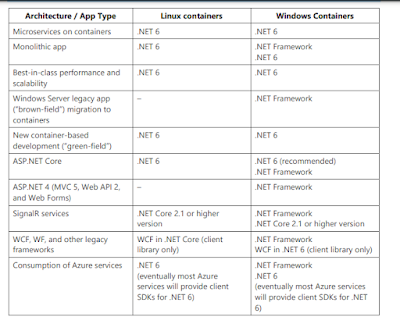
Decision table: .NET frameworks to use for Docker

 Decision table: .NET frameworks to use for Docker

The following decision table summarizes whether to use .NET Framework or .NET 6. Remember that for Linux containers, you need Linux-based Docker hosts (VMs or servers) and that for Windows Containers you need Windows Server based Docker hosts (VMs or servers).

Important Your development machines will run one Docker host, either Linux or Windows. Related microservices that you want to run and test together in one solution will all need to run on the same container platform


For Installation Docker Please Click here 

Wednesday, February 16, 2022

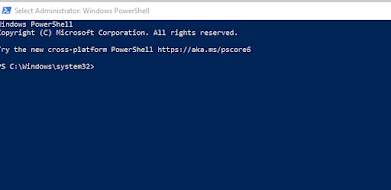
tsc.ps1 is not digitally signed error in typescript

 If you want to compile your typescript file  and getting blow error the solution for this error is below. 


Solution :- 

Open you PowerShell window in administrator mode.


You can run this in PowerShell command.

Set-ExecutionPolicy -ExecutionPolicy RemoteSigned


Thank you ! Hope it is help

Thursday, February 10, 2022

FizzBuzz In C# with Visual studio 2022

 “FizzBuzz” is an interview question asked during interviews to check logical skills of developers.

For Demonstration, we will print number starting from 1 to 100. When a number is multiple of three, print “Fizz” instead of a number on the console and if multiple of five then print “Buzz” on the console. For numbers which are multiple of three as well five, print “FizzBuzz” on the console. I am using visual Studio 2022.

Create New project in Visual Studio 2022.My solution is look like as below screen.


My solution and project name is "Practice".

Add new class with Method

 public static void fizzBuzz(int n)
        {
            for (int i = 1; i <= n; i++)
            {
                if (i % 3 == 0 && i % 5 == 0)
                {
                    Console.WriteLine("FizzBuzz");
                }
                else if (i % 3 == 0)
                {
                    Console.WriteLine("Fizz");
                }
                else if (i % 5 == 0)
                {
                    Console.WriteLine("Buzz");
                }
                else
                {
                    Console.WriteLine(i);
                }
            }
        }

Now it is final time to put code in the Program.cs 

using Practice;

Console.WriteLine("Hello, World!");

Console.WriteLine("Please enter your number ");
int n = Convert.ToInt32(Console.ReadLine());

Result.fizzBuzz(n);

Output are as below


Thank you Hope it is help you.


Tuesday, February 1, 2022

C# Questions and answers

 1) What's the difference between Invoke() and BeginInvoke() on delegate?

The answer are as below 

  • Delegate.Invoke: Executes synchronously, on the same thread.
  • Delegate.BeginInvoke: Executes asynchronously, on a threadpool thread.
  • Invoke blocks the caller until the scheduled action finishes.
  • When you use BeginInvoke your loop is going to run super fast since BeginInvoke returns right away. This means that you're adding lot and lots of actions to the message queue. You're adding them much faster than they can actually be processed. This means that there's a long time between when you schedule a message and when it actually gets a chance to be run.
2) How to check a thread status.
Ans:- A Thread class is responsible for creating and managing a thread in multi-thread programming. It provides a property known as IsAlive to check if the thread is alive or not. Or in other words, the value of this property indicates the current execution of the thread.

Syntax:
public bool IsAlive { get; }

// C# program to illustrate the
// use of IsAlive property
using System;
using System.Threading;

public class GFG {

// Main Method
static public void Main()
{
Thread thr;

// Get the reference of main Thread
// Using CurrentThread property
thr = Thread.CurrentThread;

// Display the current state of
// the main thread Using IsAlive
// property
Console.WriteLine("Is main thread is alive"+
" ? : {0}", thr.IsAlive);
}
}

Output:Is main thread is alive ? : True

3) How to subscribe to and unsubscribe from events In C#.

Ans:-