When working with files for the web, JavaScript needs to be loaded and run alongside HTML markup. This can be done either inline within an HTML document or in a separate file that the browser will download alongside the HTML document.
This tutorial will go over how to incorporate JavaScript into your web files, both inline into an HTML document and as a separate file.
Adding JavaScript into an HTML Document
You can add JavaScript code in an HTML document by employing the dedicated HTML tag <script> that wraps around JavaScript code.
The <script> tag can be placed in the <head> section of your HTML, in the <body> section, or after the </body> close tag, depending on when you want the JavaScript to load.
Generally, JavaScript code can go inside of the document <head> section in order to keep them contained and out of the main content of your HTML document.
However, if your script needs to run at a certain point within a page’s layout — like when using document.write to generate content — you should put it at the point where it should be called, usually within the <body> section.
Let’s consider the following blank HTML document with a browser title of Today's Date:
index.html
<!DOCTYPE html>
<html lang="en-US">

<head>
    <meta charset="UTF-8">
    <meta name="viewport" content="width=device-width, initial-scale=1">
    <title>Today's Date</title>
</head>

<body>

</body>

</html>
Right now, this file only contains HTML markup. Let’s say we would like to add the following JavaScript code to the document:
let d = new Date();
alert("Today's date is " + d);
This will enable the webpage to display an alert with the current date regardless of when the user loads the site.
In order to achieve this, we will add a <script> tag along with some JavaScript code into the HTML file.
To begin with, we’ll add the JavaScript code between the <head> tags, signalling the browser to run the JavaScript script before loading in the rest of the page. We can add the JavaScript below the <title> tags, for instance, as shown below:
index.html
<!DOCTYPE html>
<html lang="en-US">

<head>
    <meta charset="UTF-8">
    <meta name="viewport" content="width=device-width, initial-scale=1">
    <title>Today's Date</title>
    <script>
        let d = new Date();
        alert("Today's date is " + d);
    </script>
</head>

<body>

</body>


</html>
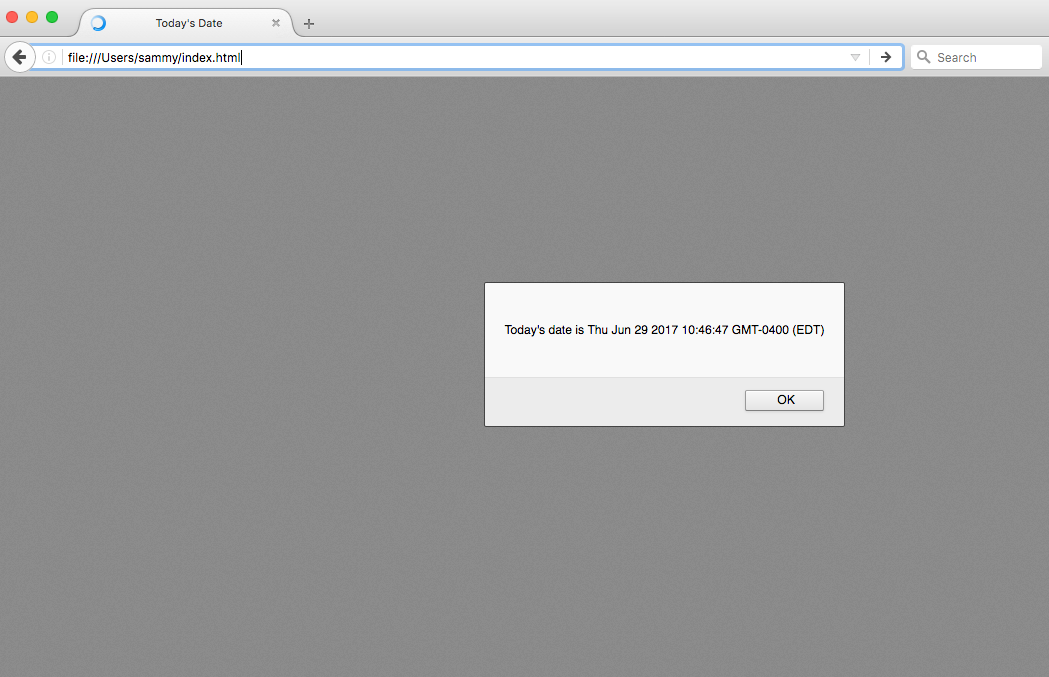
Once you load the page, you will receive an alert that will look similar to this:
You can also experiment with putting the script either inside or outside the <body> tags and reload the page. As this is not a robust HTML document, you likely will not notice any difference in the loading of the page.
If we were modifying what is shown in the body of the HTML, we would need to implement that after the <head> section so that it displays on the page, as in the example below:
index.html
<!DOCTYPE html>
<html lang="en-US">

<head>
    <meta charset="UTF-8">
    <meta name="viewport" content="width=device-width, initial-scale=1">
    <title>Today's Date</title>
</head>

<body>

  <script>
      let d = new Date();
      document.body.innerHTML = "<h1>Today's date is " + d + "</h1>"
  </script>

</body>

</html>
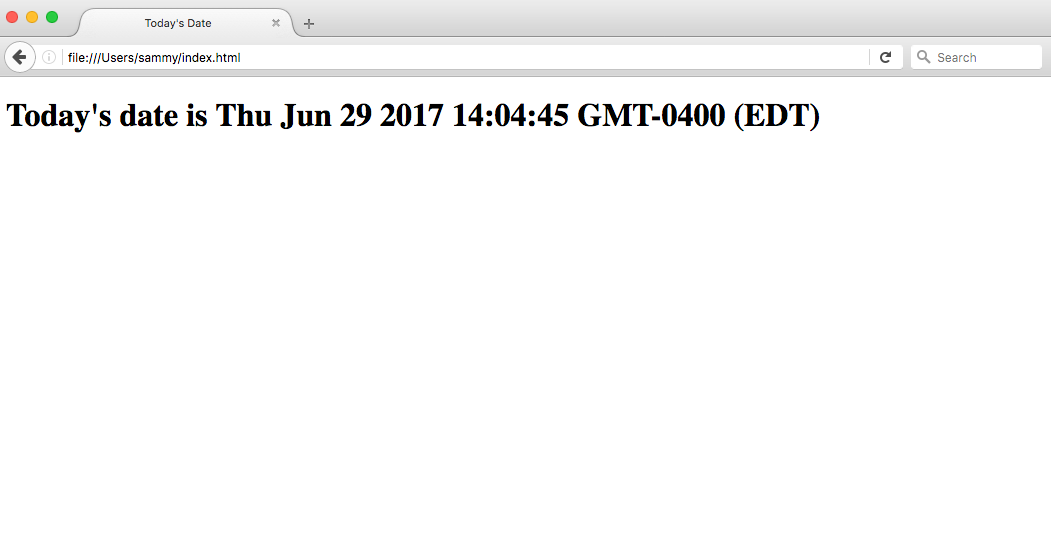
The output for the above HTML document loaded through a web browser would look similar to the following:
Scripts that are small or that run only on one page can work fine within an HTML file, but for larger scripts or scripts that will be used on many pages, it is not a very effective solution because including it can become unwieldy or difficult to read and understand. In the next section, we’ll go over how to handle a separate JavaScript file in your HTML document.
We can start with our previous HTML template from the section above:
index.html
<!DOCTYPE html>
<html lang="en-US">

<head>
    <meta charset="UTF-8">
    <meta name="viewport" content="width=device-width, initial-scale=1">
    <title>Today's Date</title>
</head>

<body>

</body>

</html>
Now, let’s move our JavaScript code that will show the date as an <h1> header to the script.js file:
script.js
let d = new Date();
document.body.innerHTML = "<h1>Today's date is " + d + "</h1>"
We can add a reference to this script to or below the <body> section, with the following line of code:
<script src="js/script.js"></script>
The <script> tag is pointing to the script.js file in the js/ directory of our web project.
Let’s look at this line in the context of our HTML file, in this case, below the <body> section:
index.html
<!DOCTYPE html>
<html lang="en-US">

<head>
    <meta charset="UTF-8">
    <meta name="viewport" content="width=device-width, initial-scale=1">
    <title>Today's Date</title>
</head>

<body>

</body>

<script src="js/script.js"></script>

</html>
Thank you ..............
 ng build --prod --aot
 ng build --prod --aot --vendor-chunk --common-chunk --delete-output-path --buildOptimizer